The Send a Microsoft Teams Message step can be used to post a message to a Teams channel at any point in a deployment or runbook process, for example to report the outcome of a deployment or alert your team to a failure.
The Send a Microsoft Teams Message step is available from Octopus Server version 2026.
Each step targets one or more channels via incoming webhooks. You’ll need a webhook URL for each channel before adding the step. To create one, see Create an Incoming Webhook in the Microsoft Teams documentation.
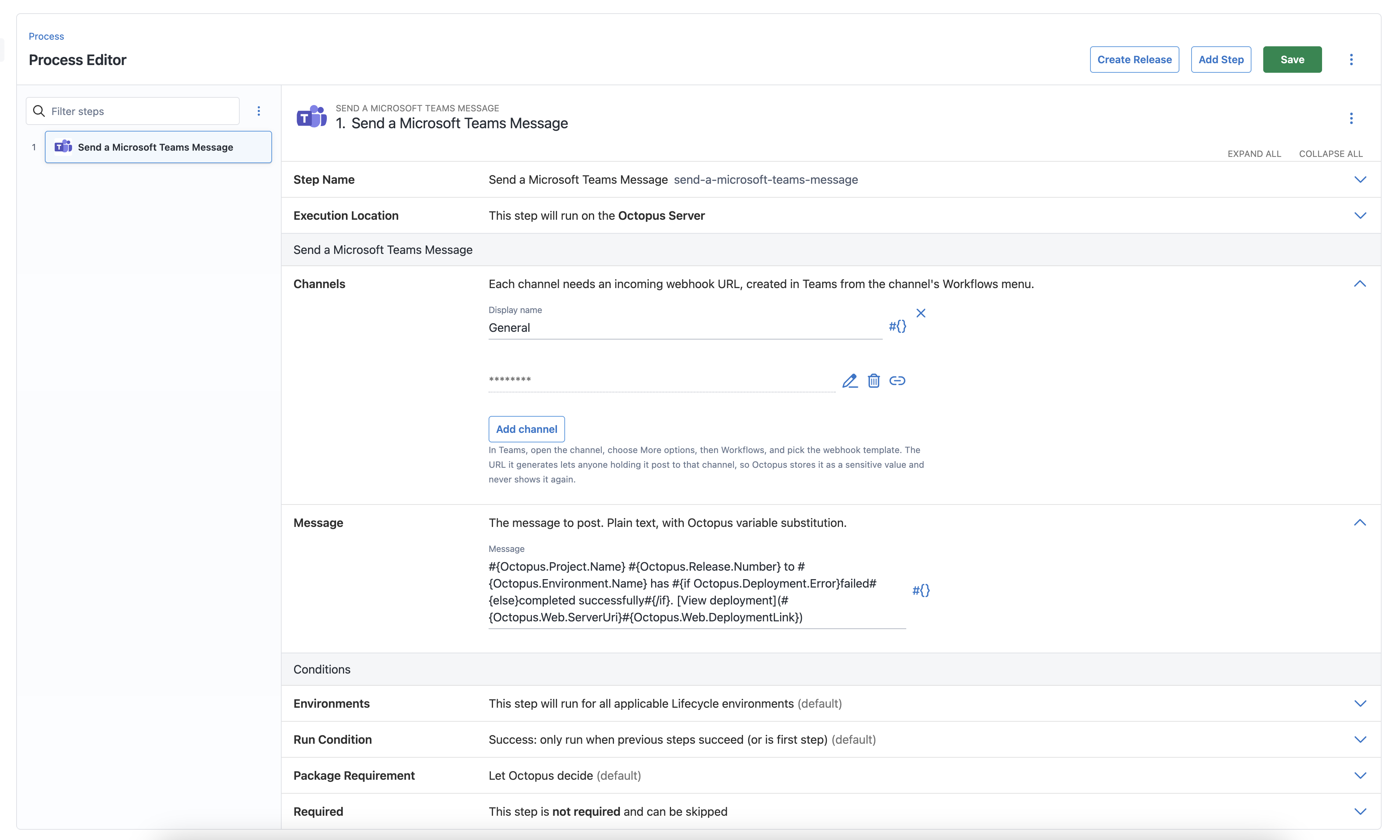
Add the step
-
Navigate to your project’s deployment process and click Add step.
-
Search for and select Send a Microsoft Teams Message.
-
Give the step a name.
-
Add one or more channels. For each, enter a display name and the incoming webhook URL. You can use an Octopus variable for the URL if you want to vary it per environment or tenant.
Webhook URLs are sensitive. For version-controlled projects, store the URL in a sensitive variable and reference it here rather than entering it directly.
-
Enter the message to post.
-
Set conditions to control when the step runs.
-
Save the deployment process.
Message content
The message field supports Octopus variable substitution.
Example
#{Octopus.Project.Name} #{Octopus.Release.Number} to #{Octopus.Environment.Name} has #{if Octopus.Deployment.Error}failed#{else}completed successfully#{/if}. [View deployment](#{Octopus.Web.ServerUri}#{Octopus.Web.DeploymentLink})See system variables for the full list of variables available during a deployment.